CLR903
Product Overview
1. Product Appearance and Description
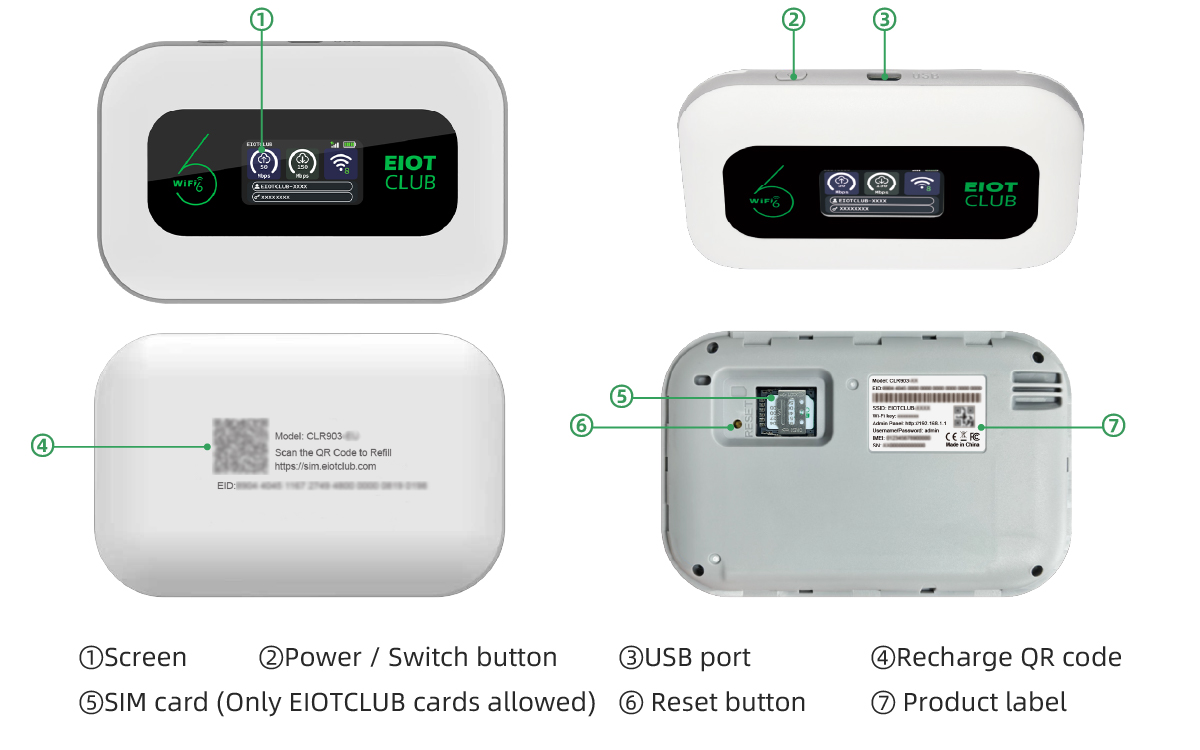
2. Packaging and Model
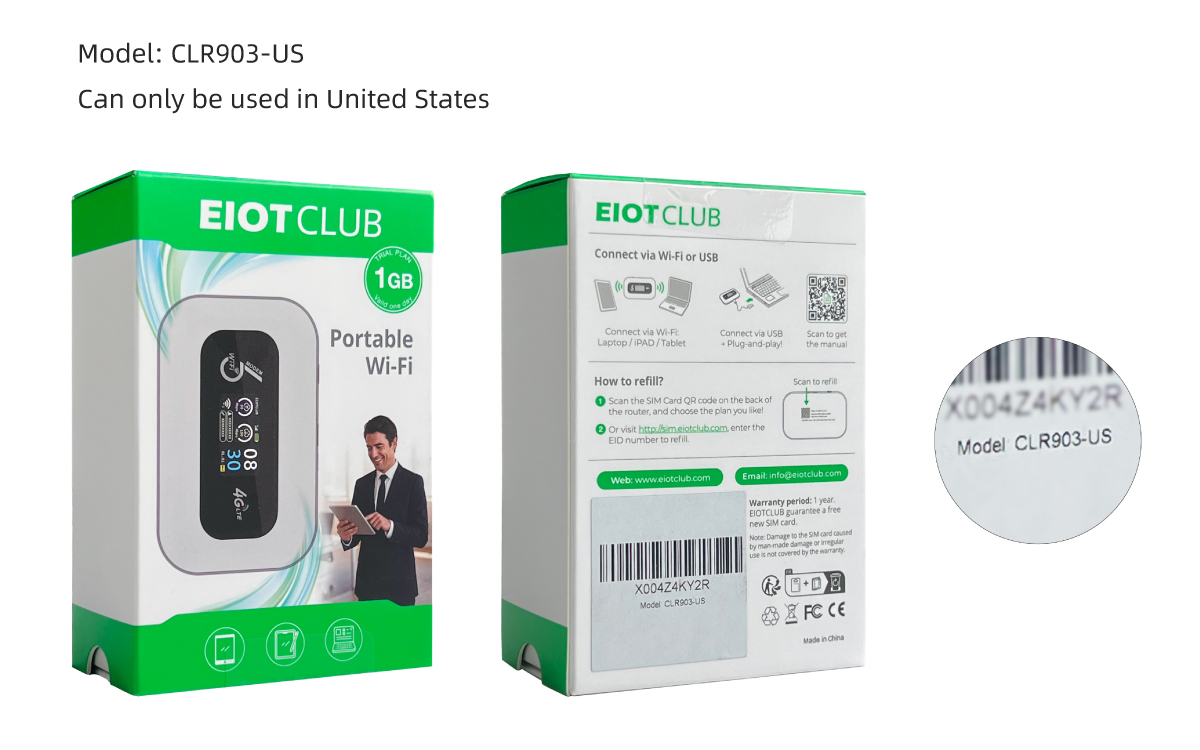
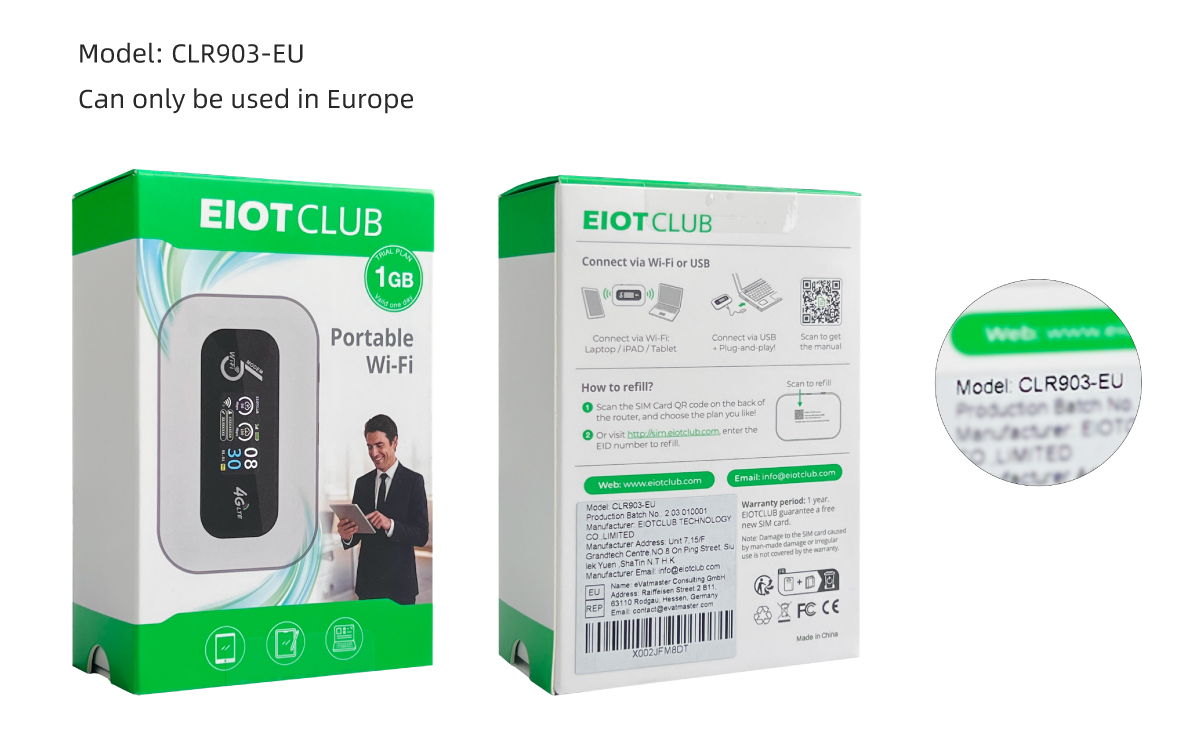
3. What's in the Box
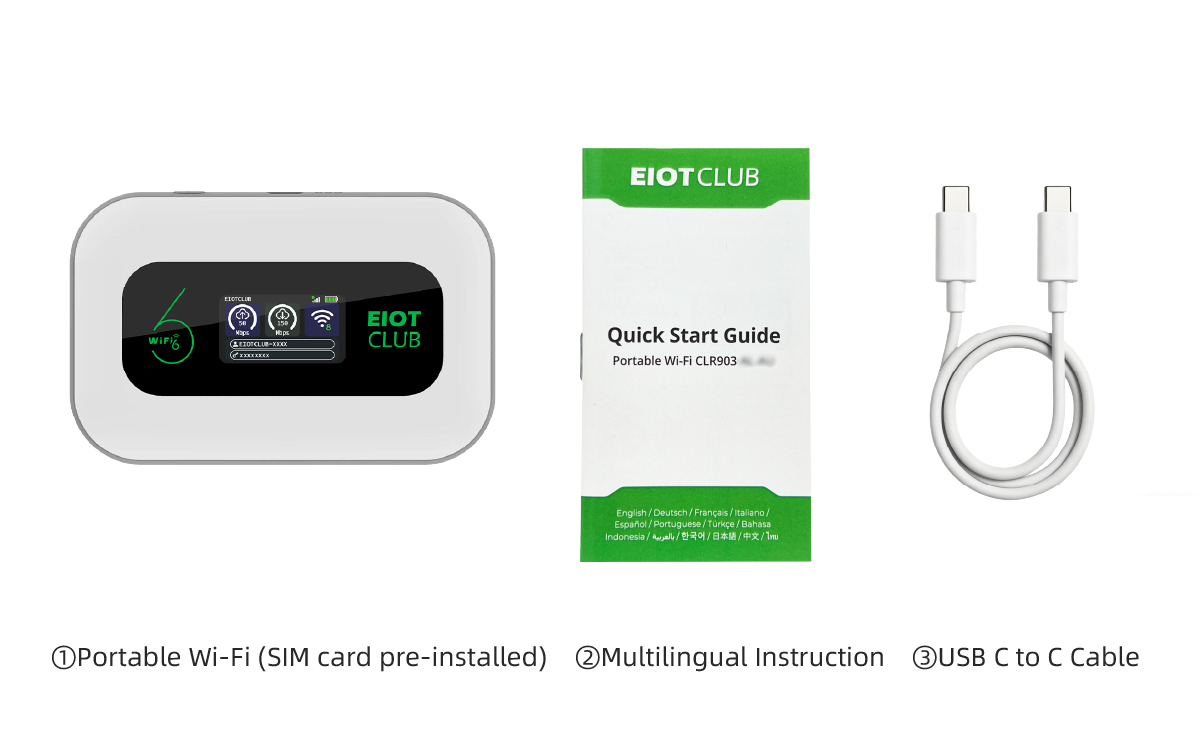
Specifications
| Item | Specifications |
|---|---|
| Product Dimensions | 10.8 × 7 × 1.6 cm(4.25 × 2.76 × 0.63 in) |
| Product Weight | 96 g(3.4 oz) |
| Power | 3000mAh Li-ion Battery Type-C USB Input: 5V/1A |
| Operating Temperature | 0℃ – 45℃ / 32℉ – 113℉ |
| Memory | DRAM 256Mb + Flash ROM 64Mb |
| LTE Rate | LTE-FDD: 150Mbps DL / 50Mbps UL Cat4 LTE-TDD: 130Mbps DL / 35Mbps UL Cat4 |
| Frequency Bands | EU Version (CLR903-EU): LTE-FDD: B1/B3/B5/B7/B8/B20/B28 LTE-TDD: B38/B40/B41 WCDMA: B1/B5/B8 US Version (CLR903-US): LTE-FDD: B2/B4/B5/B7/B8/B12/B17/B28/B66 LTE-TDD: B38/B40/B41 WCDMA: B2/B4/B5/B8 |
| WiFi | 2.4GHz Wi-Fi Supports IEEE 802.11 b/g/n/ax |
| Encryption | USBWEP/WPA2-PSK/WPA3/CCMP |
| Max. Supported Devices | Up to 32 devices via Wi-Fi + 1 device via USB |
| Supported Systems | Windows 11/10/8/7, Linux, Android, Mac OS X 10.6 and above |
Quick Start Guide
1. Connect Wi-Fi
Press and hold power button for 5 seconds to turn on
- Via Wi-Fi Name and Password The Wi-Fi name (SSID) and password are displayed on the screen. Search for the corresponding Wi-Fi name on your device and enter the password to connect.
- Via USB Connection Connect the device to your computer using a USB data cable for internet access. *Comes with a USB‑C to USB‑C cable, If one end feels tight when connecting, try using the other end.
2. Screen Display Information
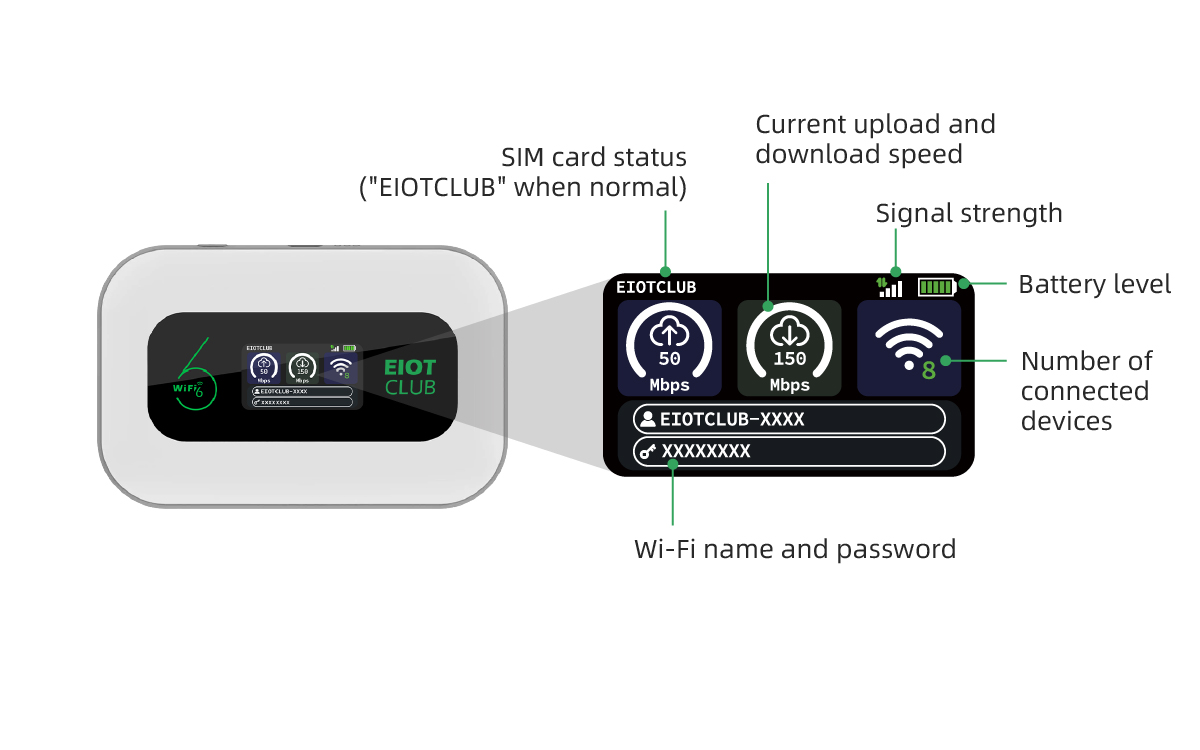
*Screen automatically turns off after 30 seconds of inactivity. Device enters Power-saving mode after 10 minutes with no Wi-Fi connection, press the power button to wake.
3. Button Function
The Power/Switch Button cycles through different information screens when pressed repeatedly while the screen is off:
- Press Once: Shows the real-time status screen SIM card status, upload/download speed, signal strength, battery level, number of connected devices, Wi-Fi name and password
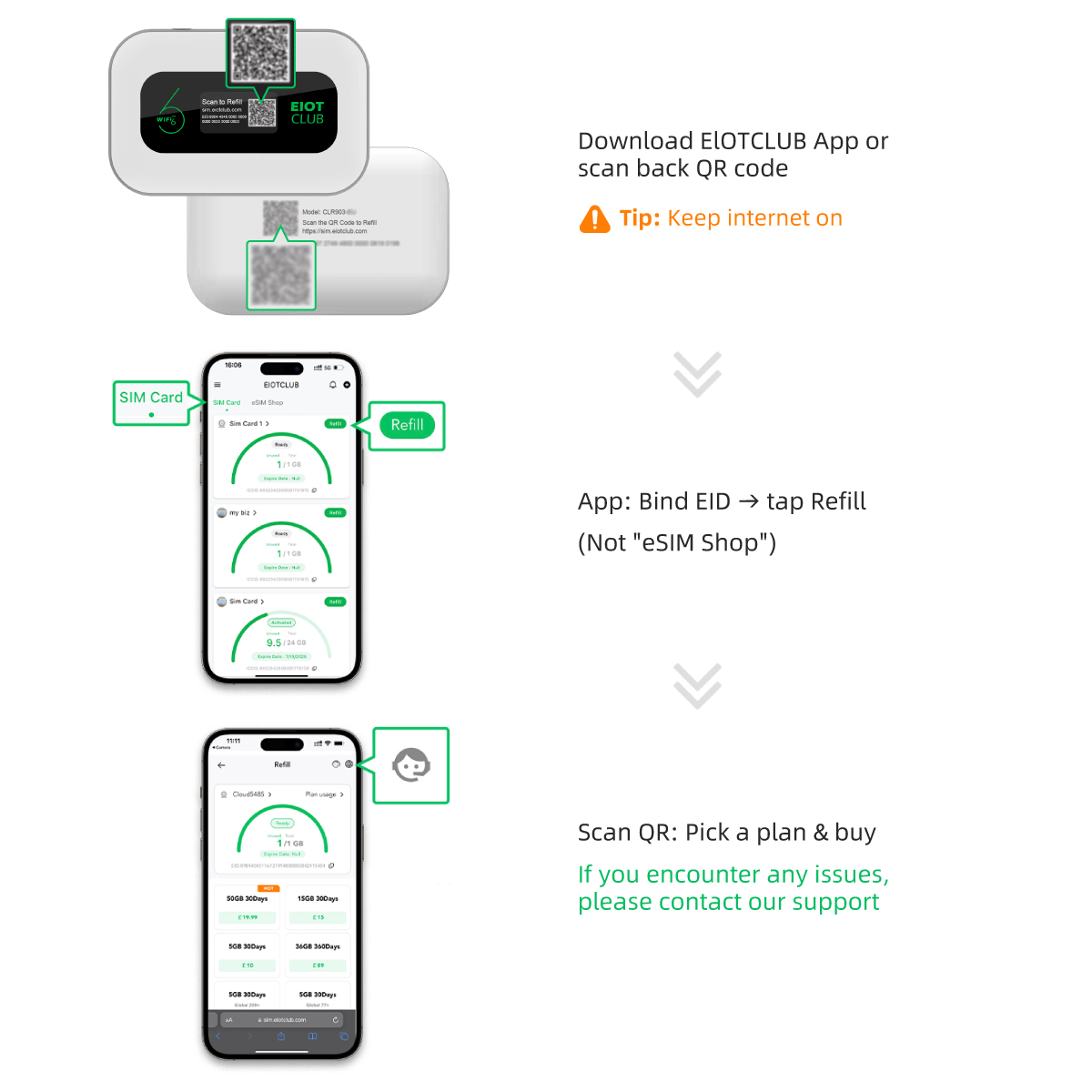
- Press Twice: Shows the Refill QR Code Scan to access the official top-up page or payment platform and recharge your product account online.
- Press Three Times: Shows the Management Platform Information Includes website URL, login username and password, IMEI number, and firmware version.
- Press Four Times: Shows the Manual QR Code Scan to view the latest version of the product's electronic manual for detailed functions and maintenance information.
Recharge Guide
Network Settings
1. Web Management Interface
Access: Enter 192.168.1.1 in browser
- Username: admin
- Password: admin
Language:
The user interface supports multiple languages. You can select your preferred language from the menu in the upper-right corner of the page. Supported languages include: Chinese, English, French, Spanish, Arabic, German, and Italian.
Browser:
The management page is compatible with Internet Explorer 11 and above, as well as other major browsers such as Firefox, Chrome, and Safari.
2. Home Page Overview
On this page, you can view the essential status and configuration of your device at a glance.
- Internet & Cellular Connection: Monitor your cellular signal strength, check if roaming is active, and see key connection details like your IP address and network operator.
- Router Information: Find vital identifiers for your device, including the device model/version, LAN IP address, IMEI, and ICCID numbers.
- Home Network: Manage your Wi-Fi settings, including the network name (SSID) and security mode, and see a list of wirelessly connected devices.
3. Quick Setup(Basic)
Click "Quick Setup" in the upper-right corner to configure your device's essential settings swiftly. This guided process allows you to quickly set up your website login credentials (username and password), as well as your Wi-Fi network name (SSID), password, and security encryption method.
Step 1: Set Administrator Account
Step 2: Configure Wi-Fi Network
Step 3: Confirmation
4. Full Network Settings
4.1 Internet Setting
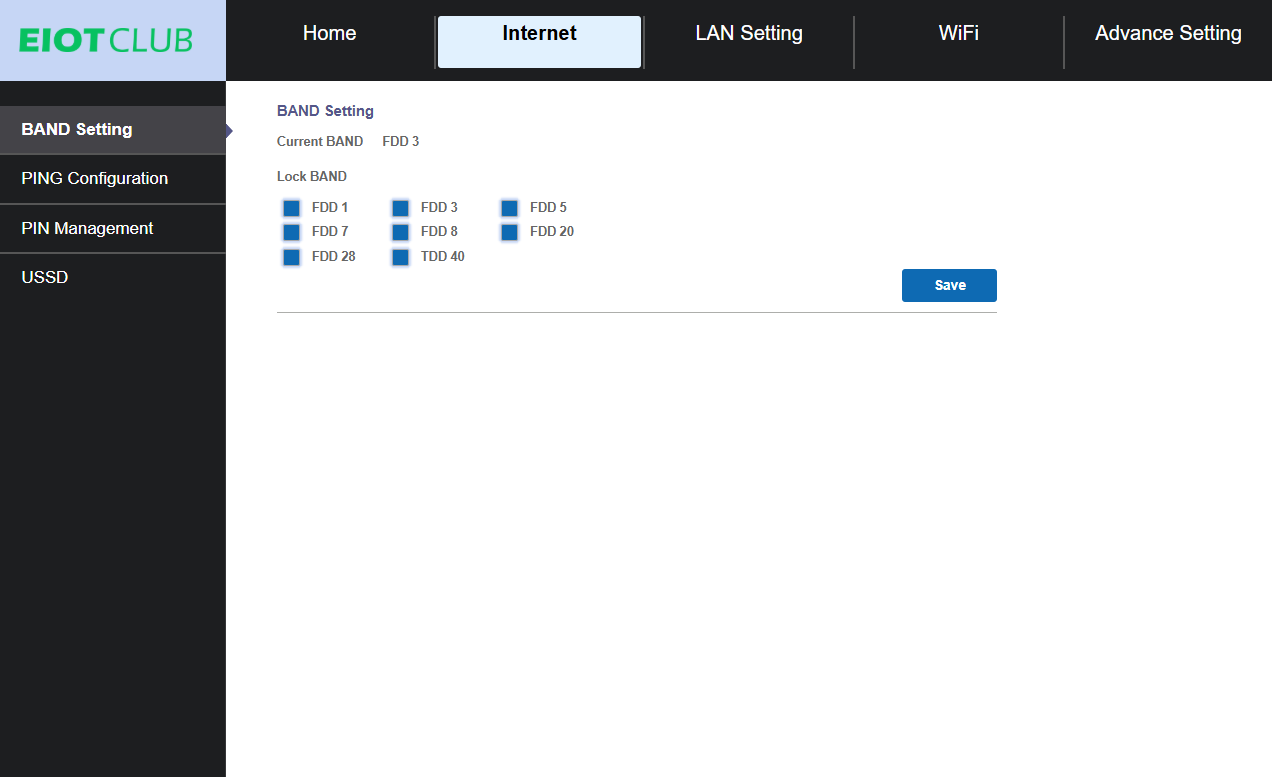
- BAND Setting: Manually select or lock the device to a specific cellular frequency band (e.g., FDD 3, TDD 40).
- PING Configuration: When Enabled, the device sends periodic PING requests to a specified server. Configurable parameters include the PING server address, interval, timeout, and number of attempts.Note: Changes take effect after a reboot.
- PIN Management: This section allows you to enable, disable, or verify the SIM PIN code, providing an extra layer of security for SIM card usage.
- USSD: Initiate USSD commands and view the corresponding responses.
4.2 LAN Setting
- DHCP Settings: Allows for static IP configuration or dynamic IP assignment. DHCP ensures each connected device receives a unique IP address.
- Connected devices: Displays a list of devices connected via USB and WiFi.
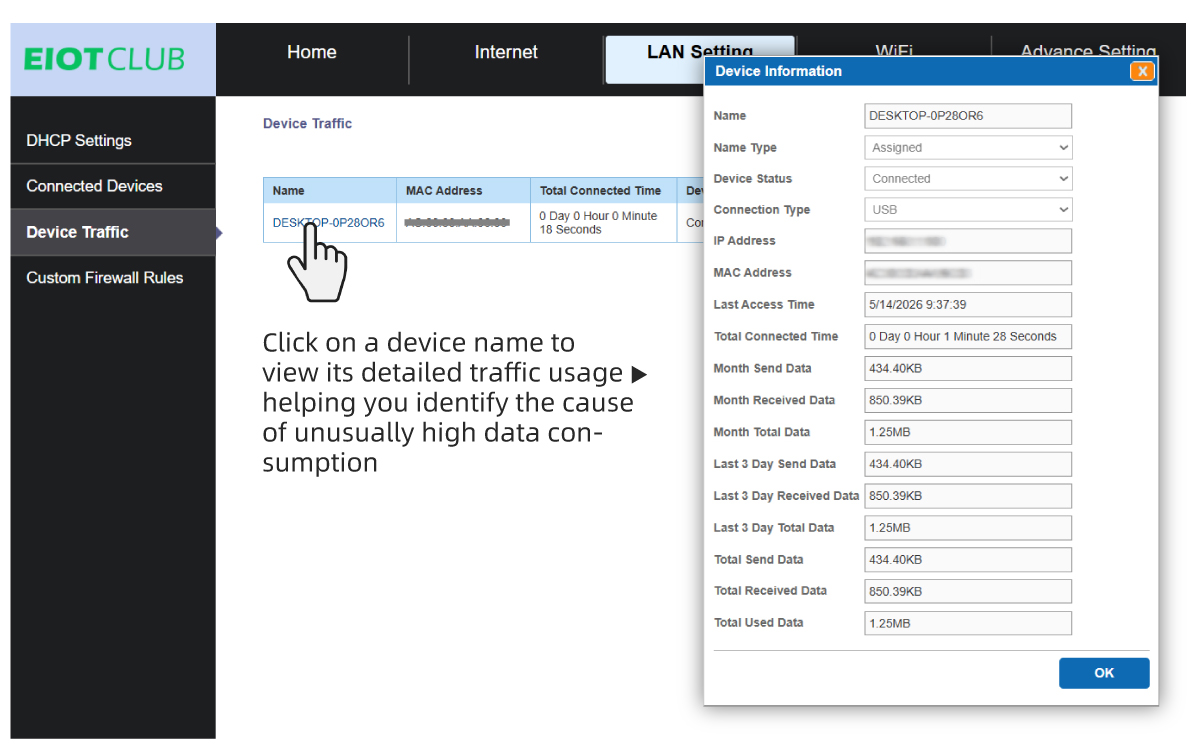
- Device Traffic: Click on a device name to view its total data usage
- Custom Firewall Rules: Can be used to block the network traffic the using source IP address, source ports, destination IP address, destination ports or any combination of these parameters.
4.3 Wi-Fi Setting
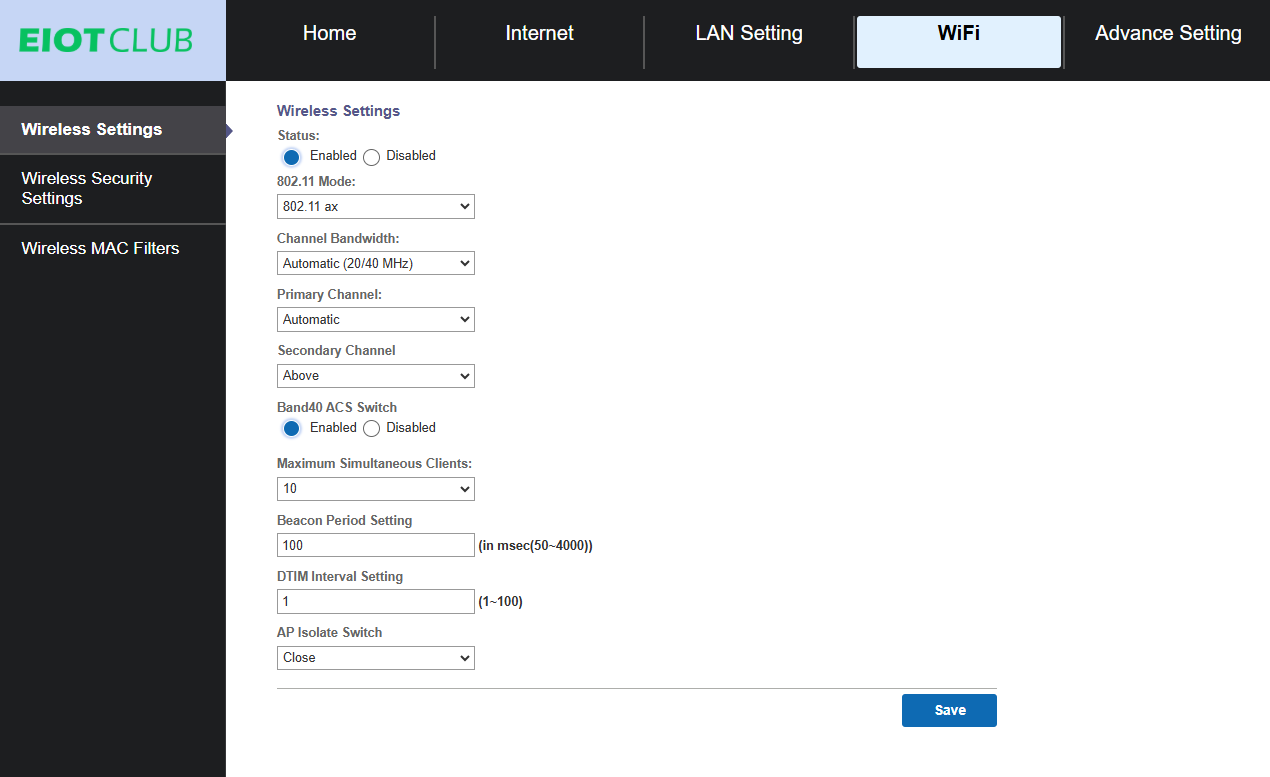
- Wireless Settings: Configure wireless mode, channel bandwidth, channel number, maximum number of connected devices, and other WiFi-related parameters.
- Wireless Security Settings: Set the WiFi SSID, password, and encryption type.
- Wireless MAC Filter: Supports both whitelist and blacklist modes for MAC address filtering. Devices can be added or removed from the list.
4.4 Advance Setting
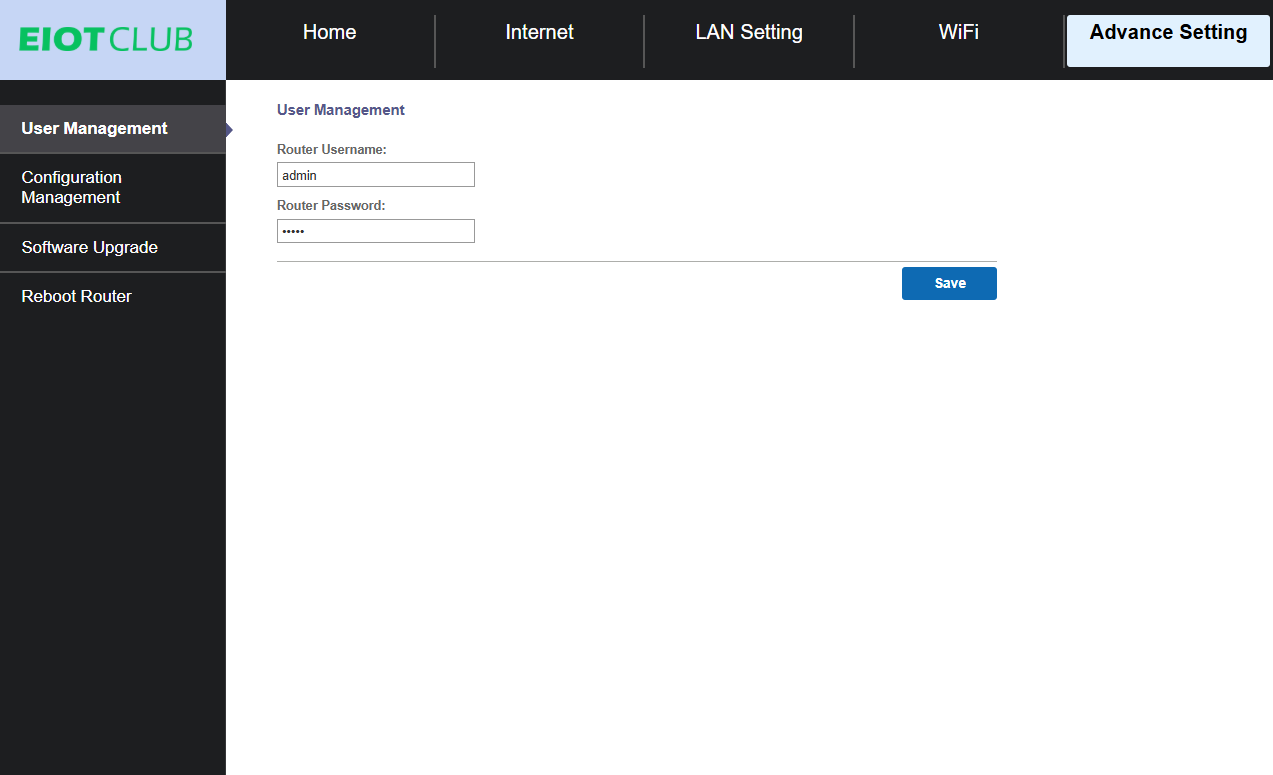
- User Management: This is where you can change the username and password required to access the router's administration panel at 192.168.1.1
- Configuration Management: Used to restore factory settings.
- Software Upgrade: Used to upgrade the device's firmware.
- Reboot Router: Reboot the device. Some settings require a reboot to take effect. If the device does not work after changes, a reboot is recommended.
Factory Reset
- Soft reset: Web interface > Advance Setting > Configuration Management > Factory Default Settings
- Hard reset: Insert pin into reset hole for 5 seconds
Upgrade for Custom APN
Devices running software version V5.8.2 or above support custom APN settings, allowing users to replace the built-in SIM card with their own.
If you want to your own SIM card but your device software version is below V5.8.3.2, you can upgrade the software locally by following the steps below.
- Check your device version
Log in to the admin panel and check the Software Version shown on the home page.
- Contact us for the upgrade package
Please send us a screenshot showing your device version, and we will provide the upgrade package for your device.
How to upgrade
- Plug the device into your computer, log in to the admin panel 192.168.1.1, upload the upgrade package.
- Insert pin into reset hole for 5s, then wait for network to reappear
- Clear browsing data, log in again, and click Factory Reset
- After upgrading to a supported version, you can set the APN manually (admin panel→internet→ APN)
Troubleshooting
| Issue | Solution |
|---|---|
| Won't power on | Keep the device charging for 10 minutes to activate it. |
| No network | • Move your device to a better signal location. • Use the original built-in EIOTCLUB SIM card. Third-party SIM cards are supported only after upgrading to V5.8.2 or later. Otherwise, network failure may occur. • Check SIM card balance. Scan the top-up QR code to recharge • Ensure you are using the correct regional version: CLR903-EU is for Europe; CLR903-US is for the US only. |
| Cannot connect to device via WiFi | • Ensure WiFi password is correct. • Ensure WiFi is enabled and SSID is not hidden. • Ensure your device is not on the blacklist. |
| Cannot connect to network via USB | • Use a cable that supports data transfer(such as your phone/tablet's original cable). |
| Slow or unstable connection | • Too many connected devices may affect network stability. Disconnect idle devices • Move to an area with better signal (near a window or open space). • To check connected devices, go to 192.168.1.1 |
| Cannot open the web interface | • Make sure your phone or computer is connected to your device's Wi-Fi network. • Ensure correct gateway address ( 192.168.1.1 ) is entered or reset to default. • Refresh the web page. • Clear your browser's cookies and cache. |
| Data is being used too quickly | •Check connected devices and their data usage: 192.168.1.1 → LAN Setting → Device Traffic •Disconnect idle or unknown devices Tip: Change your WiFi password upon first use to prevent unauthorized access. |
| Need more help? | Scan the QR code on the device → Click the service icon for instant live chat support. |
Safety Warnings
PROHIBITED ACTIONS:
- Do not use chargers other than 5V/1A → May cause battery swelling or damage
- Do not use in water or high-humidity environments → Splash-resistant only, not waterproof
- Do not leave the device in high-temperature environments for extended periods